 Workbench
PERSONAS & OVERLAYS · MAC SOURCE PREVIEW
Keep the people
in view.
An employee in one corner. Their manager in another. Move through your software while the audience keeps its bearings.
Multiple overlays are included in the signed and notarized public download. Focused native Mac checks used disposable artwork; their historical evidence is recorded below. App Store submission remains separate. Whole-display sharing is the intended route; verify the receiving participant's view. What has been checked →
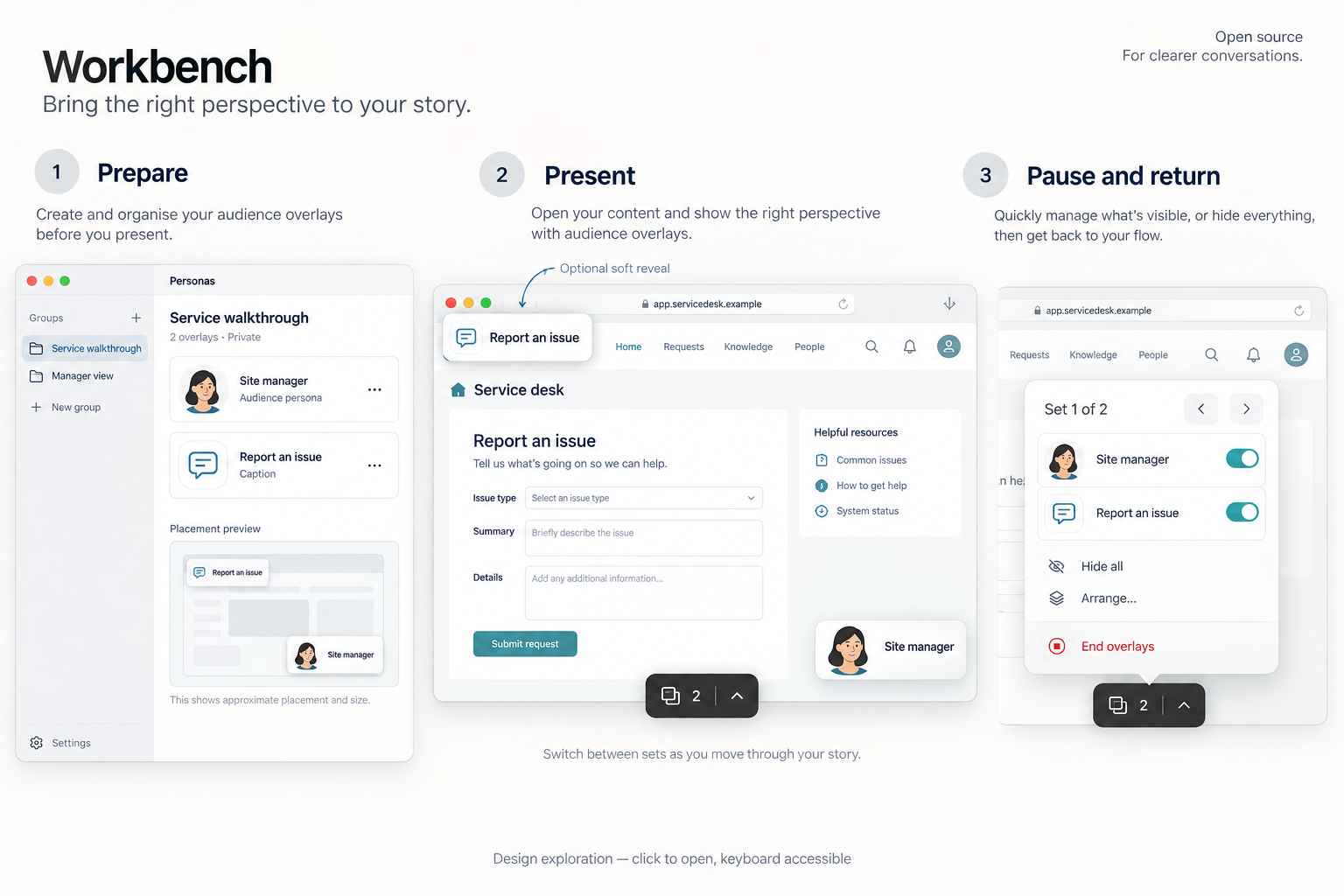
BEFORE THE CALL
A small rehearsal makes a calm demo.
- 01 · THE PEOPLE
Use a group you already know.
Open Personas and overlays…. Add finished artwork or an editable portrait card. Create a group for this audience and choose its members.
- 02 · THE ARRANGEMENT
Give each card its place.
Prepare presentation… lets you add several copies, set their position and size, and save the layout. Each copy can be shown, hidden or locked independently.
- 03 · THE SEQUENCE
Choose what comes next.
Demo groups… sets the order for this session. Start closes preparation and shows a frozen copy of the artwork. Later library edits do not change it.
Private group names stay in preparation. The live menu uses Set 1, Set 2 or an optional public label. Preparation itself may be visible in screen sharing: do it before the call.
Only need one card? Control–Option–I shows or hides it; Control–Option–Left/Right Arrow flips through the current group or all saved personas. These defaults are editable in Keyboard. A phone scene still has its own independent persona placement.
WHILE YOU PRESENT
Small when quiet. Clear when needed.
A stack-of-cards icon, visible count and chevron open a native menu with a click. Drag the tile to a convenient edge, or use a named Control position. Hover gives a hint; it is never the only way to act.
| The moment | What to do | What stays dependable |
|---|---|---|
| Move from an employee portal to a manager app | Change apps yourself, then Next set. | Only your prepared sets are available. Returning keeps their working layouts. |
| A card covers a button | Lock it for click-through, move it using Position, or hide that copy. | New copies begin locked. Moving one does not move another copy of the same card. |
| Show a second perspective | Add another copy, or replace the selected card from the prepared members. | Source artwork and other copies remain intact. |
| The conversation moves away from the demo | Hide all temporarily. | Show again restores the exact visibility choices. Switching sets while hidden stays hidden. |
| Use a keyboard or a hardware button | Assign Controls, Next, Previous, Hide/Show or End in Keyboard shortcuts. | All five are off by default. Explicitly focus the controls, then press Space to open the menu. |
For a little motion, choose Soft reveal before Start. New artwork briefly fades in; set changes remain immediate. The option starts off and respects Reduce Motion. The cards do not blink, talk or try to guess audience attention.
AFTER THE CALL
Save a useful adjustment. End cleanly.
Save this layout for next time stores only the current set's arrangement. If preparation changed during the session, a visible notice asks you to review it instead of overwriting that work. Other live changes remain temporary.
End overlays removes every card and its tile. It keeps saved groups and images, leaves other apps alone and does not restore wallpaper. Quitting also ends the session; overlays never appear automatically on launch.
WHAT INFORMED THE DESIGN
Borrow the useful parts.
PerfectPixel demonstrates layered artwork and locks within a browser. OBS makes preparation and the live scene distinct. Presentify separates global and contextual controls. Workbench borrows those interaction ideas while keeping this job in its existing native persona module.
The three priorities were prepared set switching, independent locked copies, and reversible Hide with a clear End. Automatic webpage attachment and a compositor for captured app windows remain separate problems. Neither is required for this first whole-display workflow.
Apple panels support small auxiliary controls; click-through windows let the app beneath receive input; motion guidance informed the restrained reveal. Native window flags alone do not establish capture exclusion.
Official documentation research, checked 15 September 2026. These competitors were not installed or exercised in this review. Full comparison and decision record →
IMPLEMENTATION & RECOVERY
Evidence stays with the feature.
Focused native acceptance passed at source 163f30a. The integrated Mac scene suite passes 88 tests and 2,367 assertions, including frozen content, separate instances, paused switching, migration and conflict-aware saving. The broader StageKit CI-mode suite passes 114 tests and 2,533 assertions (its live menu-bar popover check is excluded). The installed build’s strict Developer ID signature, preparation entry and five disabled multi-overlay shortcut defaults were verified. Preparation, duplication, native positions, Save, unsaved-draft protection, Start, keyboard menu access, individual hide, paused set switching and exact visibility restoration were exercised. A recorded native snapshot showed three independent click-through cards and one control tile. The later single-persona shortcut source passes 5 focused tests and 76 assertions for default keys, conflict-safe migration, cycling, show/hide and read-only preservation; it is included in Preview 4, but those global keys still need physical acceptance. This is not meeting-receiver or multiple-display validation.
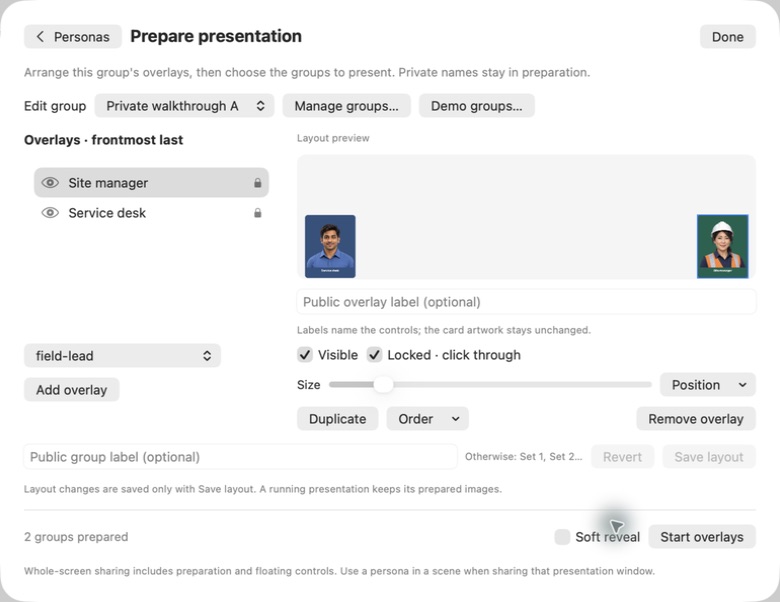
For contributors: state and file compatibility
The persona library owns preparation; a short-lived session owns frozen image copies, public labels and working placements. One HUD controls the native windows. No browser permission, URL reader, cloud service or new scene schema is added.
Saving a multi-overlay layout or ordered sequence upgrades the persona manifest to version 3 after preserving its exact previous bytes in a hashed backup. Existing versions remain readable; older apps reject the new version. Keep the earlier app and its manifest together for rollback.
Up to eight groups, eight placed copies per group and 32 different prepared personas fit within a 256 MB rendered-image budget. Start validates them before replacing the current view. A missing source, stale save or unsupported file cannot silently replace it with another person's artwork.
Source specification · Structured capability and acceptance.