Apple’s native inputs
The camera, selected-photo picker and Apple Account do familiar jobs. Continuity Camera suits nearby, Mac-initiated capture. It is not a cloud inbox for a closed Mac.
 WorkbenchPREVIEW
PHOTO HANDOFF · IMPLEMENTATION PREVIEW
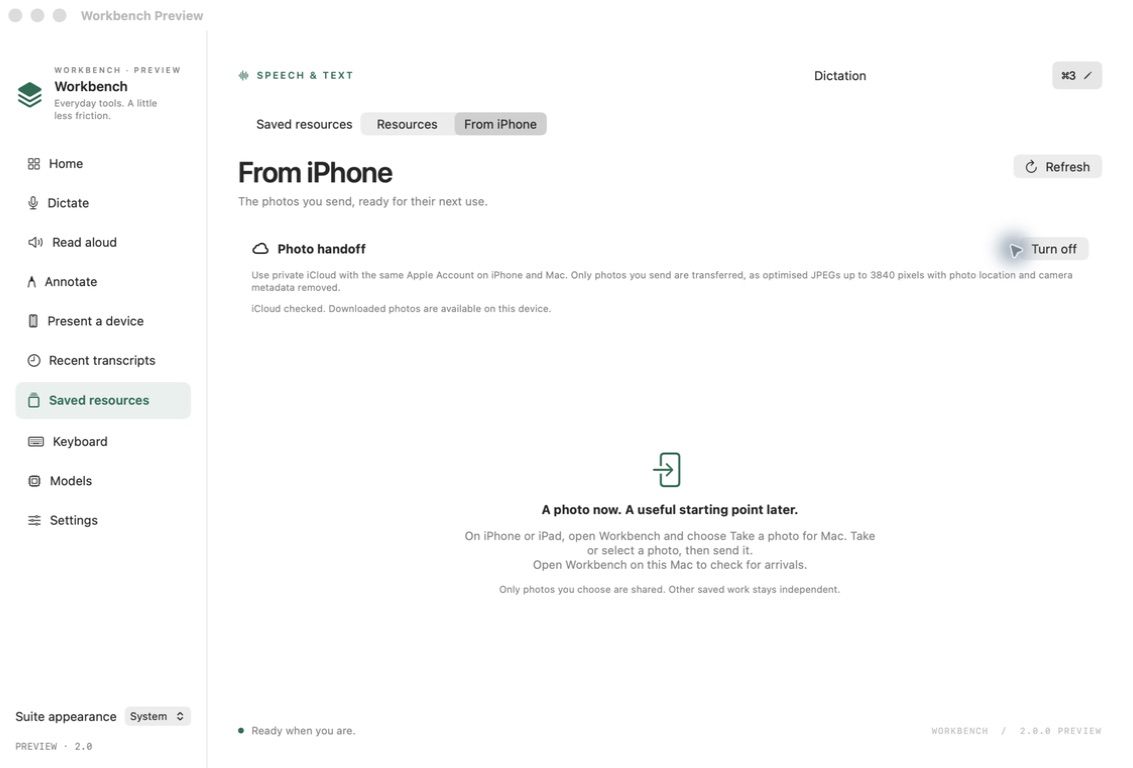
Take a picture of the real reception, office or place you’re presenting. Send that picture from Workbench. When you next open the Mac app, it checks for your selected photos.
A real photo milestone is now observed: the installed Mac Preview downloaded an existing iPhone photo after a transient timeout and retry. This does not establish every deferred-delivery or account-recovery path. The notarized Mac Preview 4 includes the provisioned photo and scene capabilities. The new Mac scene Preview is installed with that photo and existing scenes intact. Editable scene sync has its own evidence and acceptance checks; its paired runtime remains unverified. Default development and Simulator builds keep cloud access disabled. iOS 2.1.0 (3) is available for internal maintainer testing through TestFlight. Public App Store review remains pending.
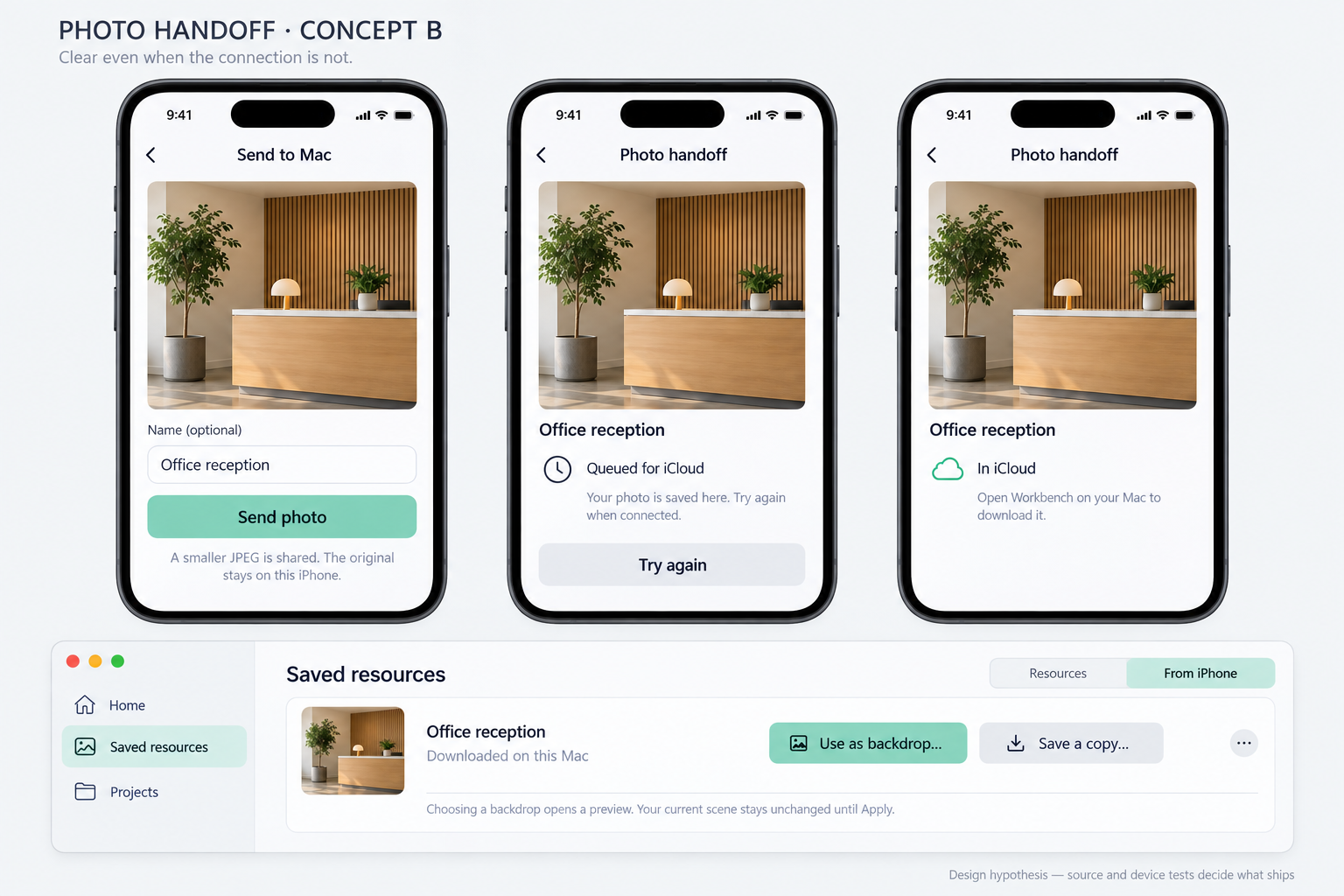
ONE PICTURE, THREE MOMENTS
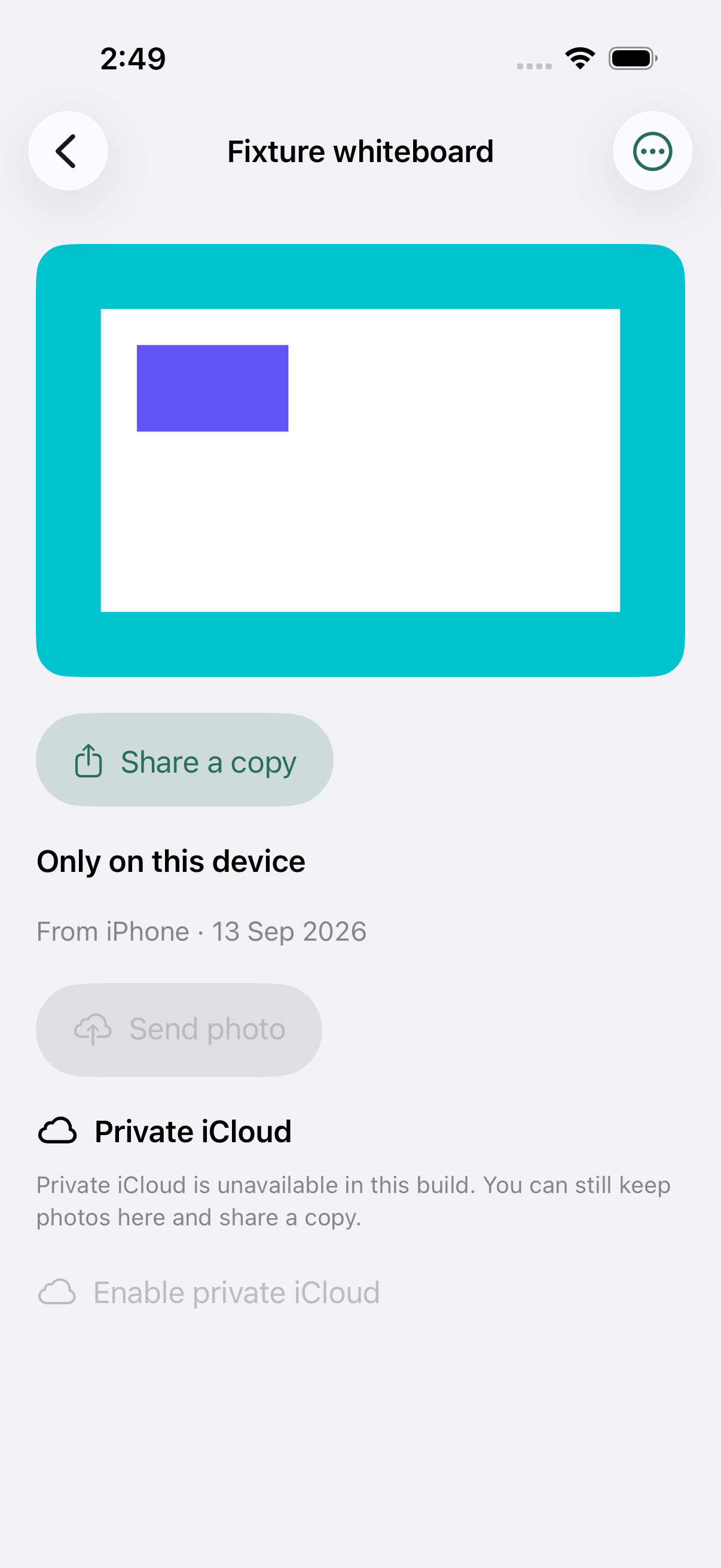
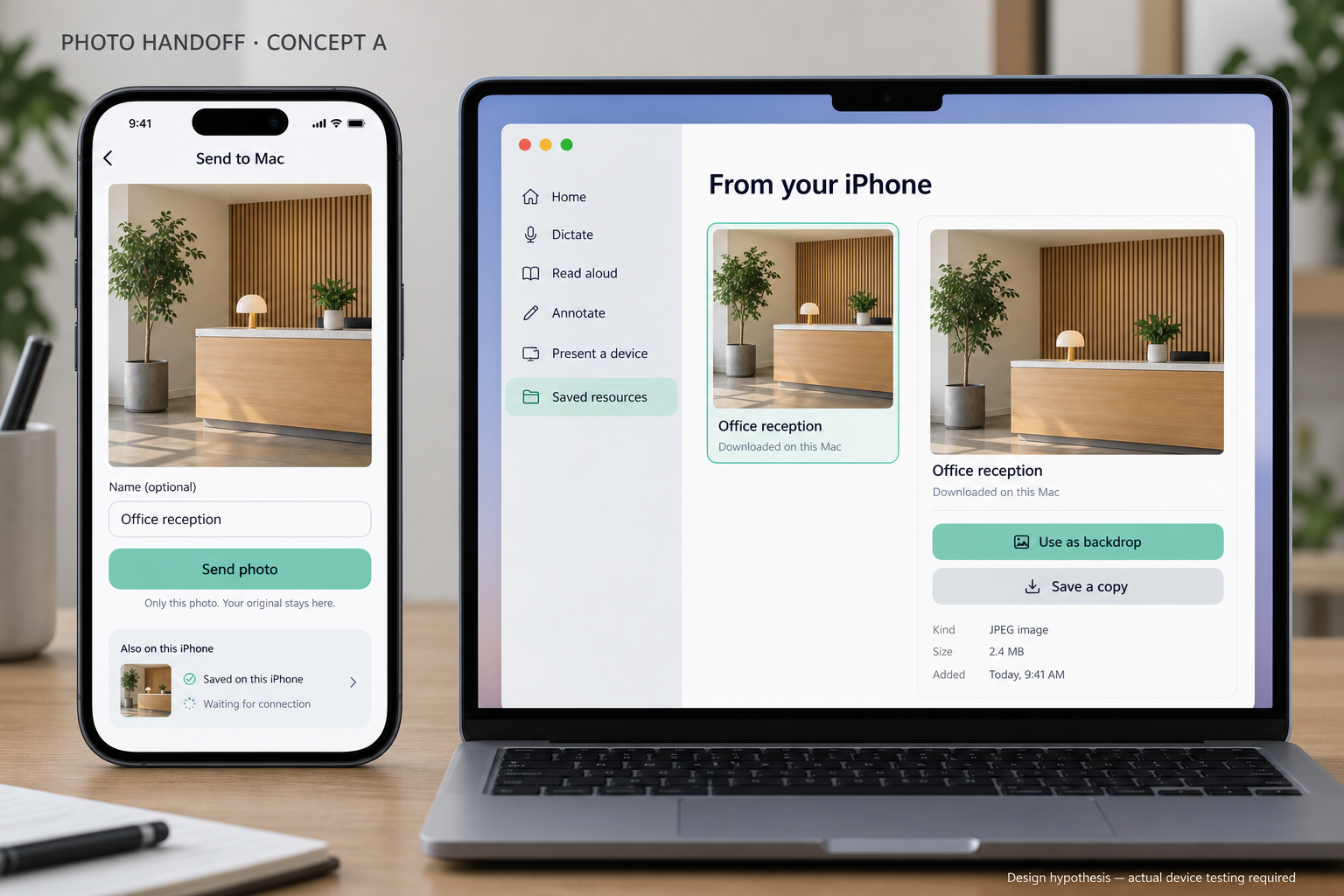
Use the native camera or select one photo. Check the picture, optionally name it, then keep it locally or deliberately send it.
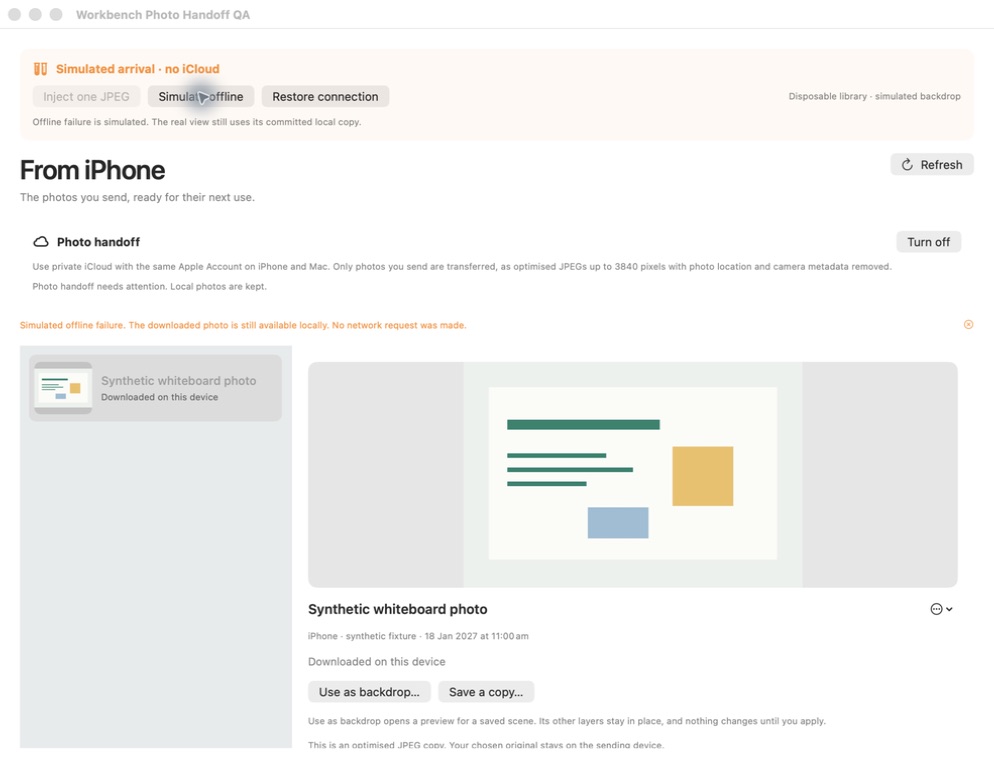
Open Workbench or refresh Saved resources → From iPhone. A downloaded copy stays available even when iCloud is turned off.
Use as backdrop chooses an existing scene and opens its replacement preview. Adjust the crop and Apply. The device, logo, persona and other layers stay where you put them.
A presentation and your everyday wallpaper keep separate settings. Photo arrival changes neither. You can also save an independent JPEG copy for another app. The newer Scenes journey puts camera and photo selection inside mobile preparation for a Mac presentation.
DESIGN EXPLORATION
RANKED BY THE USER’S JOB
| Rank | Opportunity | Decision |
|---|---|---|
| 1 | Take it now; find it later. Reliable selected-photo transfer while the Mac is away or closed. | A real existing iPhone photo has downloaded on Mac after a retry. Repeat deferred delivery, restart and account recovery before calling the whole journey verified. |
| 2 | Make the arrival useful. One action into the scene’s existing backdrop preview. | Implemented using the existing scene transaction. Explicit Apply preserves the rest of the composition. |
| 3 | Take a nearby photo from the Mac. Apple Continuity Camera inside the same arrival surface. | Parked. Valuable later, but different from deferred arrival and already available in supported Mac apps. |
The camera, selected-photo picker and Apple Account do familiar jobs. Continuity Camera suits nearby, Mac-initiated capture. It is not a cloud inbox for a closed Mac.
Yoink makes temporary gathering and transfer approachable; Anybox makes saved content useful across Apple devices. Workbench borrows a clear destination and retained copies, without becoming a general collection manager.
Dropover’s cloud links solve sharing with somebody else. LocalSend solves nearby transfer across platforms. Neither is a reason to add public links or a second transfer network to this first job.
Research reviewed on 13 September 2026. Primary documentation, architecture alternatives and testing limits are recorded in the canonical specification. Yoink’s official trial was installed after signature verification, but native automation did not obtain an operable app window; its behavior here is documentation evidence, not a completed hands-on transfer test.
FINE DETAILS THAT EARN TRUST
| State | What is true | What happens next |
|---|---|---|
| Only on this device | The local save succeeded. Nothing was uploaded. | Keep it here, or enable handoff and choose Send. |
| Queued for iCloud | Send intent is saved for a previously verified Apple Account. Delivery is not yet confirmed. | Retry on a later foreground refresh with that same account. |
| In iCloud | Apple acknowledged the cloud record. | The Mac checks when Workbench opens, becomes active or you refresh. |
| Downloaded on this device | The image was validated and saved locally. | Preview it in a scene, or save another copy. |
No guaranteed background delivery, no silent account switching and no automatic scene edits. An error stays visible alongside the local photo.
A SMALL COMMODITY LAYER
CloudKit supplies private Apple-account storage without a Workbench login or an operated web service. We accepted developer signing/schema setup to avoid making every person choose and repair a sync folder.
An app-owned iCloud Drive container remains a credible alternative if visible files become the product. A separate service only earns its place when a concrete cross-platform or team-sharing job needs it.
A narrow transport protocol serves a versioned, account-bound photo store. Native camera and Mac scene interfaces remain separate. Better image processing or a replacement service must preserve original files, explicit send intent and honest status.
We have not built a universal sync framework. A backend migration would need explicit account consent, stable identifiers and a tested import path.
Architecture decision, rejection reasons and upgrade triggers →
ONLY THE PHOTO YOU CHOOSE
Workbench keeps the selected original locally and transfers a new JPEG, up to 3,840 pixels on the long edge. It does not copy the source’s GPS or camera metadata into that JPEG. Your optional title and image contents still travel with it.
Private iCloud uses the same Apple Account on both devices. Turning handoff off stops cloud work and keeps local copies. Removing the cloud record is separate from deleting local pictures or already composed scenes. There is no public photo link, full-library scan or automatic wallpaper change.
EVIDENCE AND NEXT CONTRIBUTION
The installed Mac downloaded an existing real iPhone photo after the CloudKit owner-alias correction, following a transient timeout and retry. The newer signed Mac Preview retains that photo and existing scenes. No private photo is published here. This establishes one real download, not every deferred-delivery or recovery path. The current evidence table keeps this photo milestone separate from unverified editable-scene transfer. The captures below are earlier synthetic UI checks. Historical tests and engineering record · Earlier installed Mac account check.
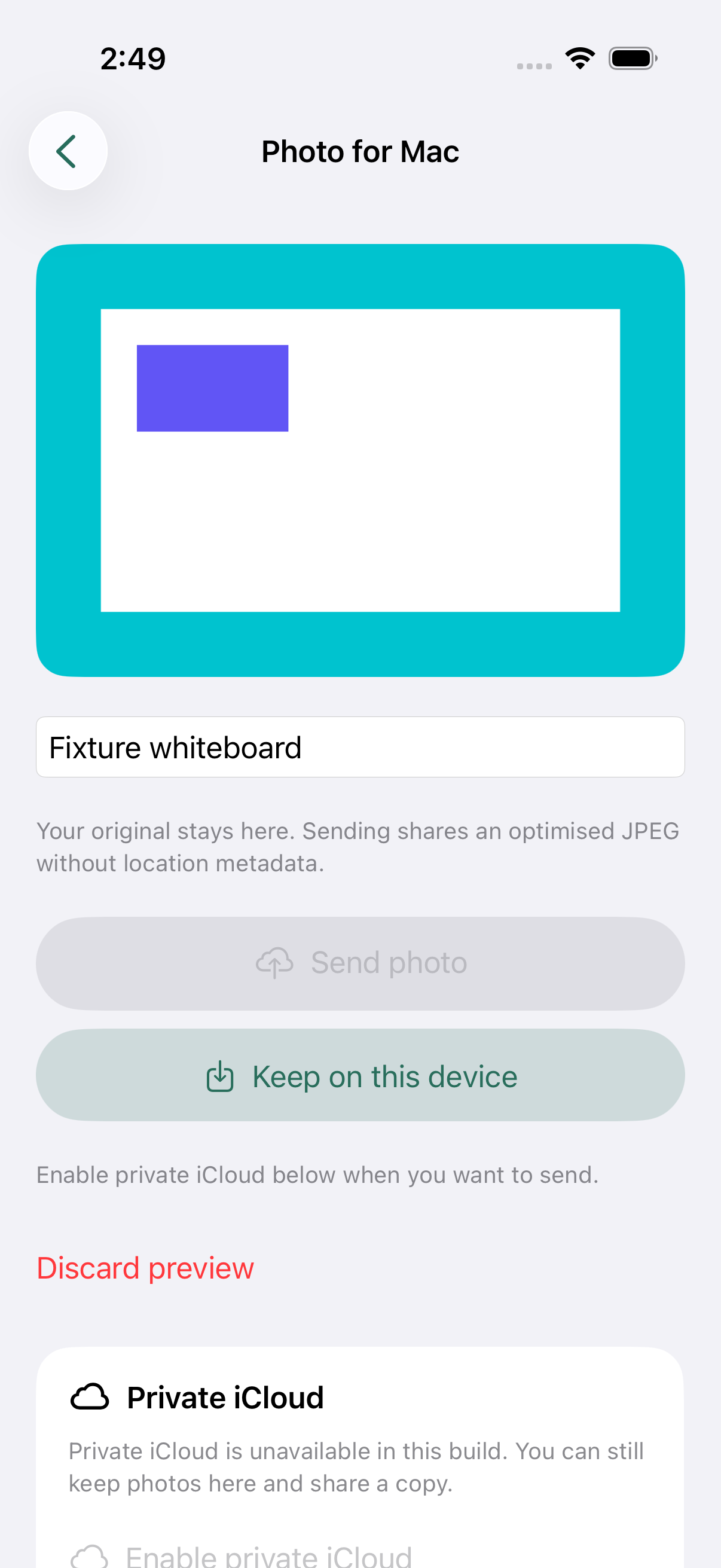
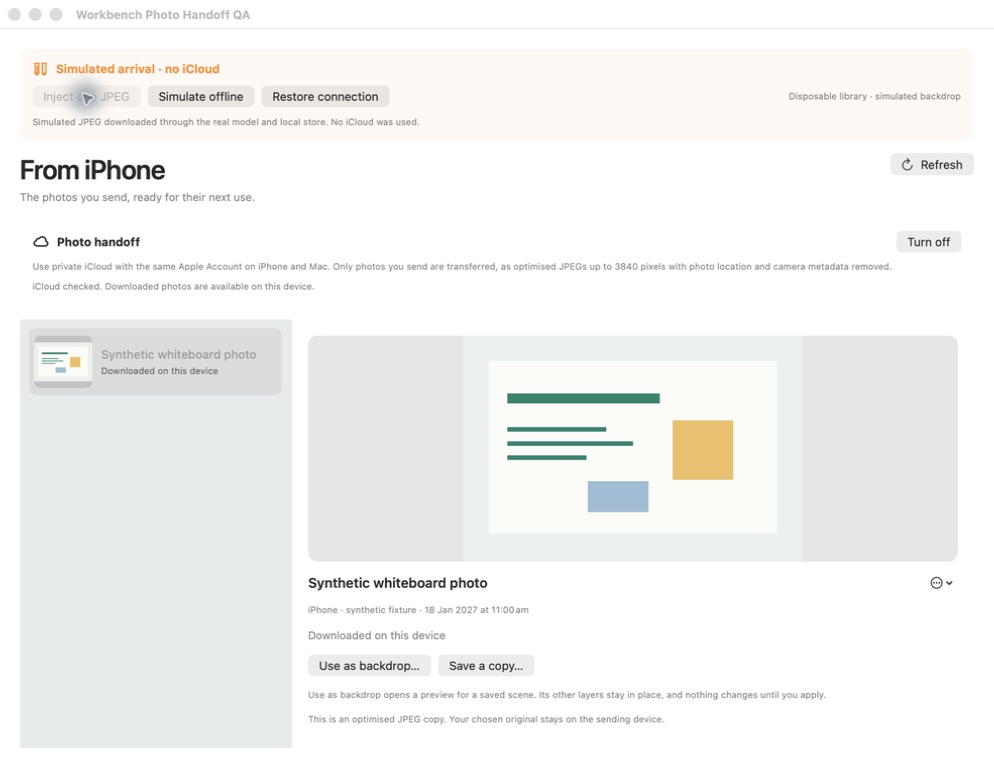
The normal Xcode/Simulator build keeps iCloud off. Test a selected synthetic photo, a local save and reopening Saved without an account.
Use the same Apple developer team, shared private container and CloudKit environment for both apps. The profile and signed-app preflight checks this configuration. A passing build alone does not.
Send a synthetic photo while the Mac is closed. Reopen Workbench, verify the downloaded image, then preview and apply it to a disposable scene. Repeat offline, after restart, after account change and after cloud removal.
Canonical product and engineering specification → · Real-device acceptance gate · Parked Continuity Camera idea · Source Preview and review →