 Workbench
IPHONE PRESENTATION · MAC
Show your phone.
Keep the conversation working.
A beautiful phone scene, a talking agent and remote phone control need different routes. Choose the one that serves the moment.
Workbench displays USB video inside your scene. It does not forward phone audio or Mac input to the phone. The connection guide and safe fallback are included in the public Mac Preview 4. App Store submission remains separate. Verification and limits →
START WITH THE JOB
One phone. A few sensible options.
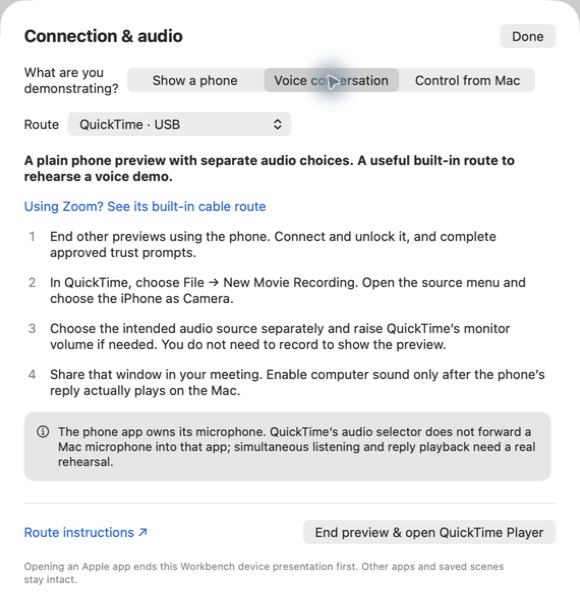
In Present a device, open Connection & audio…. The same guide is in the live presentation’s Source menu. Reading it does not start capture or request a new permission.
| You want to… | Use | Know before starting |
|---|---|---|
| Show a phone in a prepared scene | Workbench · USB Tap and speak on the physical phone. | Video only. Connect a data cable, unlock and trust the approved Mac. Start Present, then explicitly choose the phone in Source. |
| Rehearse a voice agent with a built-in Mac app | QuickTime · USB New Movie Recording, with the iPhone selected as Camera. | Choose audio separately. Monitoring must actually play the reply on the Mac before sharing computer sound. You need not record the preview. Apple instructions. |
| Share the phone and its audio in Zoom | Zoom · iPhone/iPad via Cable Enable Share computer sound. | Uses Zoom’s presentation rather than a Workbench backdrop. Zoom documents phone audio; still test whether the agent can listen and be interrupted. Zoom instructions. |
| Use Mac keyboard and mouse on the phone | Apple iPhone Mirroring The nearby phone stays locked. | Requires supported devices, the same Apple Account and an allowed configuration. Phone playback can reach the Mac, but the iPhone microphone and camera are unavailable. Apple requirements. |
| Show the phone without a cable | AirPlay to Mac Screen Mirroring to an allowed receiver. | Network and device policy apply. Some phone conversation audio modes disable mirroring; this is not a universal voice-agent fallback. Apple setup. |
| Present when the Mac cannot receive the phone | Share directly from iPhone Use Teams or Zoom on the phone. | Shares the phone screen. Keep meeting microphone and speaker active on one joined device to avoid echo. Confirm the agent still has its microphone. Teams · Zoom. |
Workbench opens installed QuickTime or iPhone Mirroring as separate Apple apps. It does not embed them, run their menus or manage the meeting. Availability is checked locally; launch success is not connection success.
A TWO-WAY CONVERSATION
Hearing it yourself is half the check.
The phone microphone receives your question. The agent produces its reply. Your meeting microphone carries your narration. Shared audio carries the agent’s reply to attendees. These are separate paths; a sound toggle cannot supply audio absent from the chosen route.
- 01 · LISTEN
Speak to the physical phone.
Start the actual agent. Confirm it hears a question and its reply plays through the intended output. QuickTime’s audio selector does not send a Mac microphone into the phone app.
- 02 · CONFIRM
Ask someone on the other end.
In the intended Teams or Zoom client, check they see the phone and hear both you and the reply, without echo. Window, whole-display and browser-tab sharing can capture different things.
- 03 · CONTINUE
Interrupt, then reconnect.
Interrupt the reply and ask a follow-up. Reconnect once and repeat. Ordinary music playback does not establish that this conversation will keep working.
Teams desktop on Mac may need its audio component and a restart; a managed Mac may need IT’s help with that installation. Browser tab audio only covers the shared tab. Use the meeting client’s actual sharing choices and check the receiver. Microsoft’s sound-sharing guidance.
WORK WITH THE MAC YOU HAVE
Prefer an allowed route.
USB avoids matching Apple Accounts and enabling a wireless receiver. It still needs an allowed data connection, trust and video access. Workbench distinguishes access turned off, where Camera settings may help, from access restricted, where an approved alternative or IT help is appropriate.
A managed Mac does not automatically rule out Mirroring. Apple lists it as available with the same Managed Apple Account on both devices; hardware, region and organisation policy still matter. Workbench does not change accounts, permissions, drivers or workplace policy. Managed Apple Account services · Accessory management.
WHEN THE PLAN CHANGES
Leave one capture before opening another.
End preview & open QuickTime Player or iPhone Mirroring dismisses the guide, closes this Workbench presentation and waits for its USB session to release. Then the Apple app opens. A failed launch stays visible and never silently restarts capture.
If the selected phone disappears, Workbench waits for that exact device. It does not choose another attached camera. Source offers another explicit choice; Reconnect retries the current one.
End presentation stops Workbench’s window, capture and keep-awake activity. It keeps your scene and desktop appearance. Stop a separately started phone broadcast or meeting share in the app that owns it.
EXPLORE, THEN CUT BACK
Clarity earns its place.
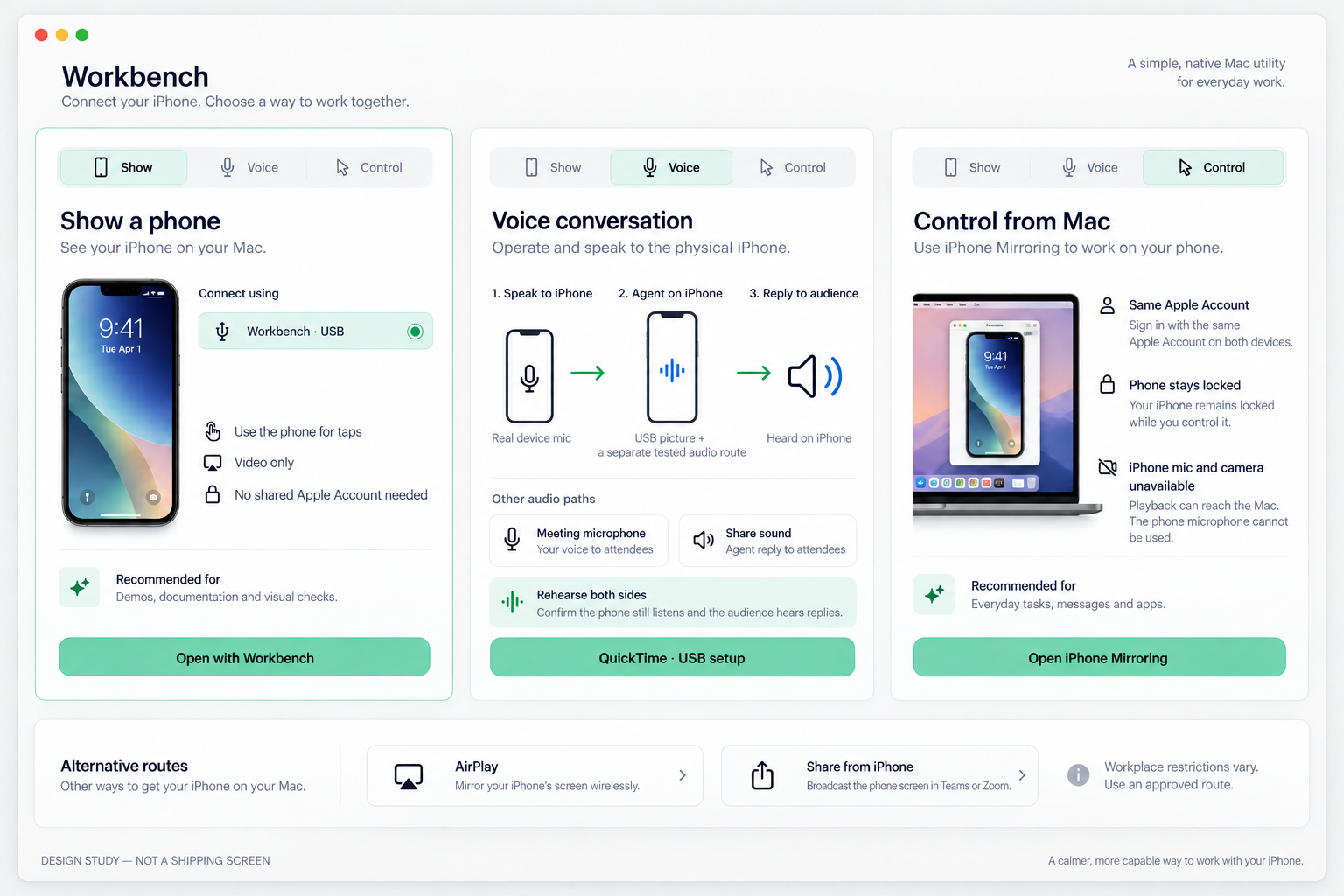
The priorities were route clarity with safe handoff, a proven phone-audio path, then a wireless receiver. We implemented the first. Apple, Zoom and Teams already supply useful routes for the others; adding an audio engine or receiver before proving a missing user journey would add maintenance without dependable value.
Primary documentation reviewed 15 September 2026. Reflector, AirServer and Camo were also compared for their actual category and constraints. No competitor app was installed or exercised in this review. Claude challenged public source summaries; source checks and native tests determined the accepted implementation. Full comparison.
WHAT WE CHECKED
Evidence, with clear limits.
Runtime ec2f961: the full Mac regression passed, including 97 shared Swift tests, 121 StageKit tests / 2,601 assertions and 51 capture-recovery checks. iPhone Simulator passed 77 unit tests. A full UI rerun passed all 11 tests after one initial text-entry failure; the initial result is retained in the journey review. The guide was also inspected at desktop and phone widths. Developer-ID-signed local Preview build 20260914220342 was installed and its real Connection & audio entry checked. That local verification is historical evidence; the feature is now included in the public Preview 4.
Still requiring real hardware and a receiver: cable unplug/reconnect, live voice-agent listening and replies, a second display, and Teams/Zoom desktop and browser capture. No guide, generated study or passing simulator test establishes those results.
Contributor specification and acceptance · Structured capability.